
Do I have to buy an outfit to use it in Rintama High?
It depends on the individual Marketplace item. Free items generally work as soon as you take them; paid items usually need to be purchased or otherwise usable on your account first.

Rintama High outfits: copy shirt, pants, and accessory Asset IDs and paste them into the Clothing panel, plus fixes when a paste fails. Verified July 30, 2026.
Watch the same creator copy a Marketplace shirt ID and paste it into the Clothing panel below.
~6 min read
Rintama High outfits covers everything beyond the default uniform: shirts, pants, and accessories pulled in from the Roblox Marketplace by numeric Asset ID. The uniform never disappears — it is your fallback — but the Clothing panel is where you swap it out layer by layer. Pair this page with hair IDs, face IDs, and the wiki hub when you want every lookup card in one place. Verified August 9, 2026.
| Fact | Detail |
|---|---|
| Import fields | Clothing panel > Import Shirt ID and Import Pants ID; Accessories is a separate panel |
| Input type | Numeric Roblox Marketplace Asset ID only |
| Where IDs come from | The item's page URL on roblox.com, browser only |
| Default outfit | The school uniform, always available as a fallback |
| Cost | Depends on the individual Marketplace item — some are free, some cost Robux |
Just like faces and hair, custom clothing starts outside Rintama High. The Clothing panel has no built-in browser — it only accepts a number you already copied from the Roblox website.
As with face and hair IDs, the Roblox mobile app does not surface a clean numeric ID the way the website does. Open roblox.com in your phone's browser rather than the installed app if you are shopping for an outfit on mobile.
The Clothing panel treats Import Shirt ID and Import Pants ID as two completely independent fields — copying a shirt does not touch your pants, and there is no "outfit bundle" paste. Budget two separate Marketplace trips (or two open tabs) if you want to change both pieces in one session.
Once you have your numbers copied, the next step is finding exactly where each one goes inside the Clothing panel.
Clothing sits as its own tab next to Character inside Customize Character — you do not need to leave that menu to handle shirts, pants, and accessories together.
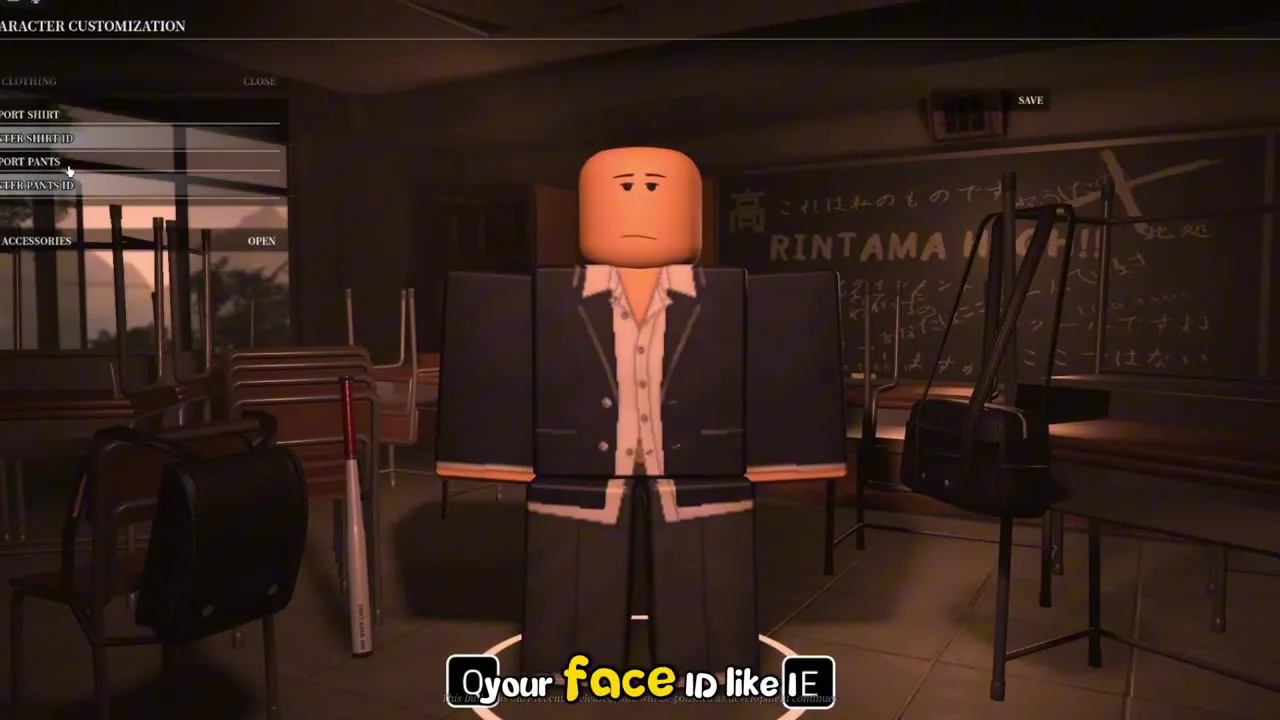
Accessories are not part of the Import Shirt / Import Pants fields — they live behind their own Open button inside the Clothing tab, with their own set of Marketplace-sourced slots. Treat it as a third, separate shopping trip rather than assuming one ID covers everything.
You do not need to import a shirt before pants or vice versa — the two fields are independent and can be filled in any order. What matters far more is picking items from the right Marketplace category in the first place, which is exactly what the next section breaks down.
Roblox's Marketplace spreads clothing across several categories, and only some of them line up cleanly with the Import Shirt and Import Pants fields.
| Category | What it covers | Where it goes |
|---|---|---|
| Classic Shirts / T-Shirts | Torso graphic or pattern | Import Shirt ID |
| Classic Pants | Leg graphic or pattern | Import Pants ID |
| Layered Clothing | Modern fitted clothing built for newer avatar bodies | Often clips or fails to render in this Classic-style field |
| Accessories (hats, masks, etc.) | Attachable add-ons layered on top of your outfit | Separate Accessories panel, not Import Shirt / Pants |
Marketplace listings get delisted, moderated, or re-priced on a rolling basis, so a fixed list of "best" shirt or pants IDs goes stale fast and can point you at a dead or unsafe item. Search Classic Shirts, Classic Pants, and Accessories yourself using the method above, and double-check any ID someone shares in a comment section against the actual Marketplace item page before you paste it in.
Most failed clothing pastes come down to one of four causes. Work through this table before assuming the panel itself is broken.
| Symptom | Likely cause | Fix |
|---|---|---|
| Nothing changes after pasting | Copied the full item link instead of just the numeric ID | Re-copy just the digits, then paste again |
| Clothing clips through the body oddly | The item is Layered Clothing built for a different avatar body type | Pick a Classic Shirt or Classic Pants item instead |
| Field rejects the entry outright | Extra spaces or a stray character pasted alongside the number | Clear the field completely and retype just the digits |
| Accessory does not show up at all | It was pasted into Import Shirt / Pants instead of the Accessories panel | Open the separate Accessories panel and paste it there |
Before you paste, reopen the Marketplace item page and confirm it is filed under Classic Shirts or Classic Pants — not Layered Clothing, and not Accessories. That single check resolves the majority of "the field did not work" reports, since the panel is behaving exactly as designed; it is only built for the Classic category.
With copying, pasting, and troubleshooting covered, the FAQ below wraps up the shorter questions.
It depends on the individual Marketplace item. Free items generally work as soon as you take them; paid items usually need to be purchased or otherwise usable on your account first.
Yes — reopen Customize Character from the Phone menu and overwrite the Import Shirt ID or Import Pants ID field at any time.
You likely pasted a Layered Clothing ID built for a different avatar body type. Use a Classic Shirt or Classic Pants item instead — they are built for this field.
No. Import Shirt ID and Import Pants ID are two separate fields, and each only accepts an ID from its matching Marketplace category.
Accessories have their own panel behind the Open button in the Clothing tab — they are separate from Import Shirt ID and Import Pants ID.
Your character falls back to the default school uniform, which is always available.
Hair IDs covers hairstyles and colors, and face IDs covers faces and heads.
August 9, 2026
Matched by build plan, shared topics, and guide progression — not random related links.