
How do I get hair in Rintama High?
Copy a Hair item’s numeric Asset ID from its Roblox Marketplace page in a browser, then paste it into Phone → Customize Character → Import Hair.

Searching Rintama High hair IDs almost always means one thing: you want a specific hairstyle on your student instead of whatever the character creator defaults to. Rintama High does not ship a scrollable hair catalog inside the game itself — every hairstyle comes from a numeric Roblox Marketplace Asset ID you copy from a browser and paste into Character Customization. Pair this page with face IDs, outfits, and the dedicated remove hair guide if you need to clear a style. Redeem codes first for Reroll Tokens before you commit to a look. Verified August 9, 2026.
| Fact | Detail |
|---|---|
| Import field | Character Customization > Import Hair |
| Input type | Numeric Roblox Marketplace Asset ID only |
| Where IDs come from | The item's page URL on roblox.com, browser only |
| Cost | Depends on the individual Marketplace item — some are free, some cost Robux |
| Persistence | Saved to your character until you overwrite or clear the field again |
Every custom hairstyle starts on the Roblox website, not inside Rintama High. The game only accepts the number — it never lets you browse the catalog from inside Character Customization — so this step happens in a separate browser tab first.
This is the one step players trip on most: the Roblox mobile app does not expose a clean numeric ID on an item's page the way the website does. If you only have a phone, open roblox.com in the phone's browser rather than the installed Roblox app, then copy the ID the same way you would on desktop.
Some Marketplace hairstyles are free to take; others cost Robux and need to be in your inventory (or otherwise usable) before the ID will actually apply. If a paste does nothing at all, check the item's price and ownership status before assuming the ID itself is wrong.
Once you have a clean number copied, the next step is finding exactly where it goes inside the game.
Character Customization lives behind your Phone, the same menu you use for Settings and codes, not a separate character-select screen.
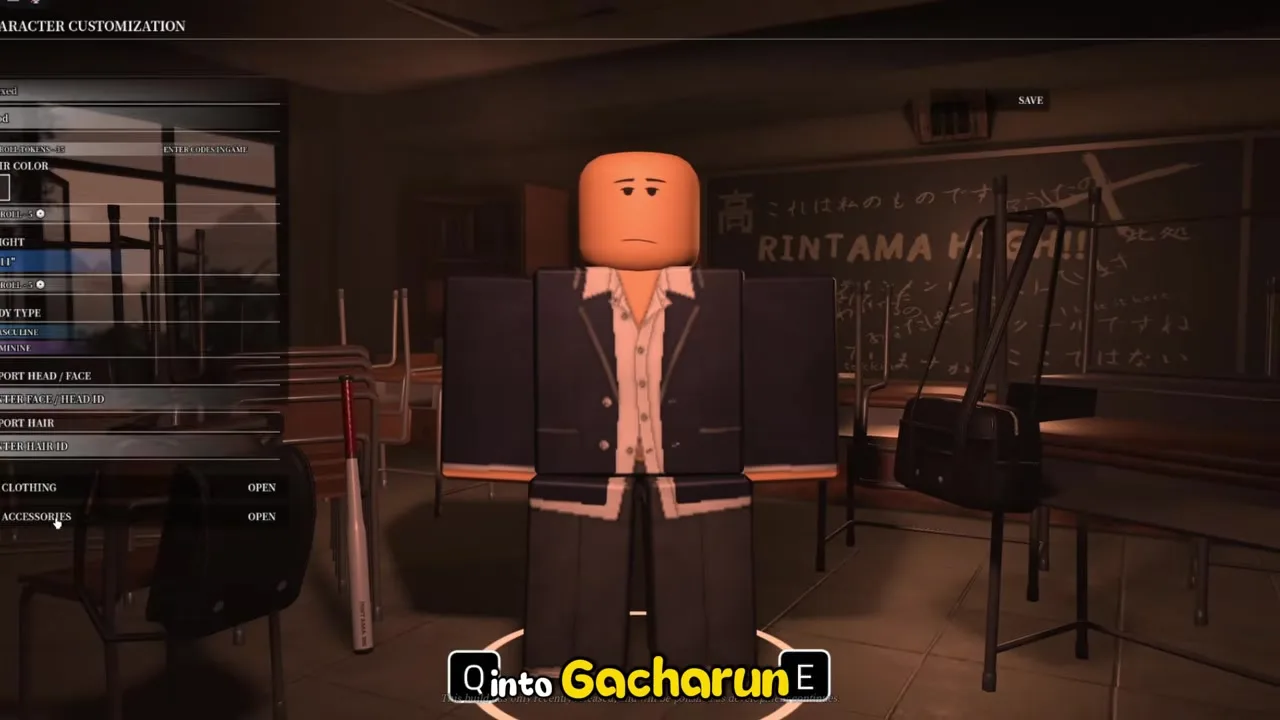
The Hair Color swatch sits directly above Import Hair on the same Character tab, and it tints whatever hairstyle you just imported rather than changing the mesh itself. Set the base hairstyle first, then adjust color, so you are not re-checking a tint against a placeholder shape.
Reroll Tokens reroll your Height stat, which is a separate combat-relevant slider — they have nothing to do with the Import Hair field and will not refund or change a hair paste. Keep that distinction in mind so you do not spend a token expecting a hairstyle change out of it.
Now that pasting works, it helps to know exactly which Marketplace categories are actually meant for this field.
Roblox organizes cosmetics into separate Marketplace categories, and only some of them are meant for the Import Hair field. Mixing them up is the single biggest reason a "working" ID does nothing.
| Category | What it changes | Where it goes |
|---|---|---|
| Hair | The hairstyle mesh itself | Import Hair field |
| Hair Accessory | Clips, bows, and other layered add-ons over existing hair | Not this field — see outfits for the Accessories panel |
| Bundle | A packaged full-body look that includes its own hair piece | Not compatible with a single-field import — pick apart the hair item on its own page instead |
| Face / Head | The expression or head mesh, unrelated to hair | Import Head / Face field — see face IDs |
Marketplace items get removed, moderated, or re-priced constantly, so a hard-coded list of "best" hair IDs goes stale within weeks and risks sending you to a dead or unsafe listing. Search the Hair category yourself using the method above, and treat any ID shared in a random comment section or aggregator site with the same suspicion you would treat an unverified code — confirm it on the actual Marketplace item page before pasting it in.
Removing a hairstyle uses the same field you used to add one — there is no separate delete button hidden elsewhere in the menu. For a full walkthrough with mobile fixes and mistake checks, open the remove hair guide.
Once you overwrite or clear Import Hair, the previous style is gone from your character — Roblox does not keep a per-game history of hairstyles you have worn. If you liked a specific look, keep its Asset ID saved somewhere outside the game before you replace it.
Between adding, swapping, and removing hair, most remaining questions are quick yes/no answers — covered in the FAQ below.
Most failed hair pastes trace back to one of four causes. Check this table before assuming the whole feature is broken.
| Symptom | Likely cause | Fix |
|---|---|---|
| Nothing changes after pasting | Copied the full item link instead of just the numeric ID | Re-copy the digits only, then paste again |
| Hair reverts to bald a moment later | The item is moderated, taken down, or otherwise no longer valid | Pick a different, currently listed Marketplace hair item |
| Field rejects the entry outright | Extra spaces, a comma, or a stray character got pasted in with the number | Clear the field completely and retype just the digits |
| Hair looks right at the shop, clips through in Roleplay | Some heavier hair meshes render differently once you leave Character Customization | Save, then check your model on the map before assuming it is broken |
Before you paste, open the Marketplace item page one more time and confirm it is actually filed under Hair, not a Bundle or Hair Accessory. That single check clears the majority of "it just does not work" reports, because the field is doing exactly what it is supposed to — it is only accepting the category it was built for.
Copy a Hair item’s numeric Asset ID from its Roblox Marketplace page in a browser, then paste it into Phone → Customize Character → Import Hair.
Reopen Import Hair from the same Character tab and clear the field completely — that strips the style back to bald or the default state.
Availability depends on whether the Marketplace item itself is free or paid — check the item page before assuming a paste failed.
Any item filed under the Hair category works as long as you copy its numeric Asset ID correctly — Bundles and Hair Accessories do not paste into the same field.
There is no separate “boy hair” import mode — filter the Roblox Marketplace Hair category for short or masculine styles, copy the numeric Asset ID, then paste into Import Hair the same way. Pair with face IDs if the head looks mismatched.
The Roblox mobile app does not expose item IDs cleanly. Copy the ID from roblox.com in a mobile browser instead of the installed app, then paste it the same way.
No. Reroll Tokens only reroll your Height stat. Hair changes go through the Import Hair field, not the token system.
Face IDs covers faces and heads, and outfits covers shirts, pants, and accessories.
August 9, 2026
Matched by build plan, shared topics, and guide progression — not random related links.