
How do I remove hair in Rintama High?
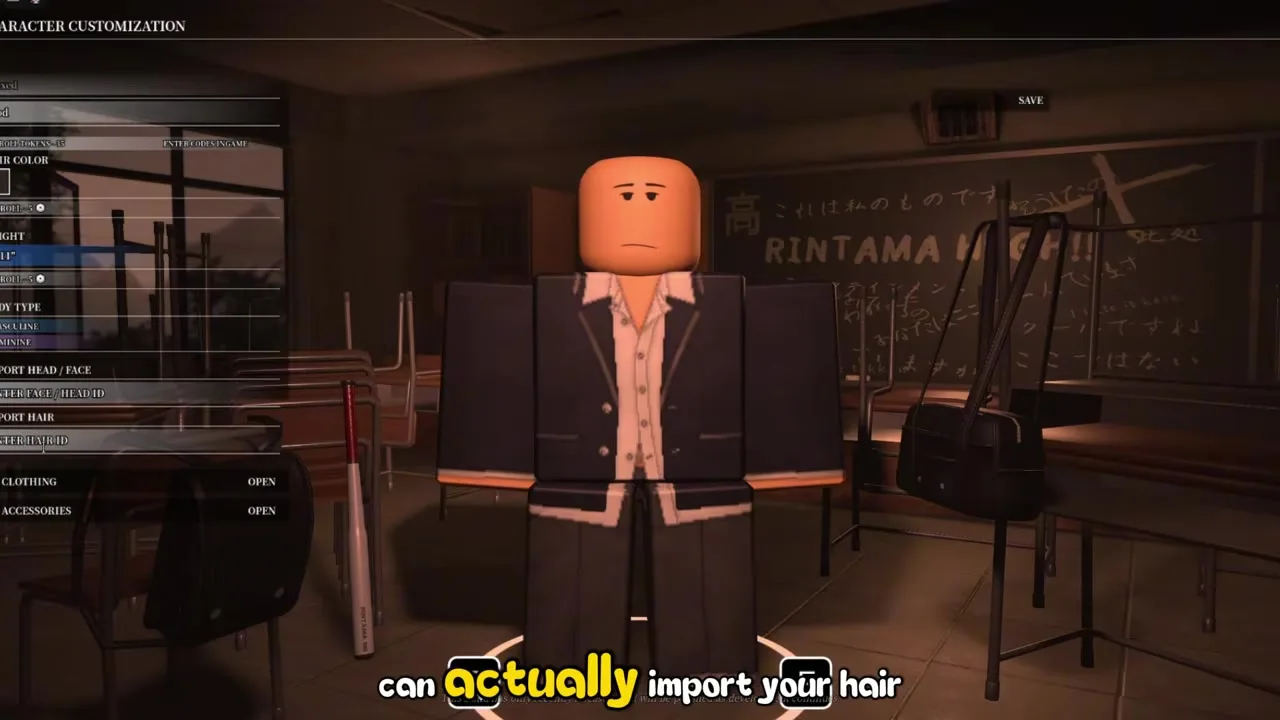
Open Phone → Customize Character → Character tab → clear every digit from Import Hair → confirm. Your student returns to bald or the base head until you paste a new Hair Asset ID.

How to remove hair in Rintama High: clear Import Hair from the Phone menu, go bald or default, and fix hair that will not reset on PC or mobile.
See the Phone Customize Character menu before you clear or replace Import Hair.
~11 min read
Players searching how to remove hair in Rintama High usually already pasted a Marketplace hairstyle and now want it gone — either for a clean bald look, to swap in a different Asset ID, or to undo a bad paste without rerolling the whole character. Rintama High does not hide a separate "Delete Hair" button anywhere in the HUD; removal happens entirely inside the same Import Hair field you used to add the style. Clear every digit, confirm the field, and your model drops back to bald or the base state until you paste something new. This page is that reset path end to end. Pair it with hair IDs when you are ready to import again, and with face IDs plus outfits if you are rebuilding the whole look. Verified August 9, 2026.
| Fact | Detail |
|---|---|
| Remove location | Phone → Customize Character → Import Hair (Character tab) |
| Action | Clear the field completely — no digits left — then confirm |
| Result | Bald or base head until you paste a new Hair Asset ID |
| Separate delete button | None — the empty Import Hair field is the reset |
| Related guides | Hair IDs · Face IDs · Outfits |
Removing hair uses the exact same menu path as adding it. There is no secondary "Reset Appearance" screen hidden under Settings or the map tab — if you are not inside Character Customization, you are not in the right place yet.
Some heavier hair meshes take a beat to drop off the preview after you clear the field — wait for the confirm animation to finish before closing Customize Character. If the preview still shows the old style, tap into Import Hair again and verify there is not a single leftover digit or space hiding at the end of the field. Roblox paste fields are notorious for trailing characters that block a true clear.
Hair Color sits directly above Import Hair on the same Character tab. Clearing Import Hair removes the mesh; it does not automatically reset Hair Color. If your student looks oddly tinted after removal, drag Hair Color back to neutral separately — that swatch tints whatever hair is active, including none.
Once you confirm an empty Import Hair field, the previous Marketplace hairstyle is gone from your character until you paste that ID again. Rintama High does not keep a history of styles you wore. Before you clear, open the item page on roblox.com one last time and copy the numeric Asset ID into a notes app if there is any chance you will want it back.
With the field cleared and saved, the next question is what you should expect to see on your model — bald, default, or something in between.
Matched by build plan, shared topics, and guide progression — not random related links.
Language around how to remove hair in rintama high gets muddy because players use "default," "bald," and "reset" interchangeably. In practice, clearing Import Hair always does the same thing under the hood: it removes the Marketplace mesh you pasted and returns your student to whatever base head Rintama High renders when no custom hair Asset ID is active.
| Goal | What to do | What you see |
|---|---|---|
| Fully bald / no custom hair | Clear Import Hair and confirm with an empty field | Base head with no Marketplace hairstyle mesh |
| "Default" look again | Same as bald — there is no separate default-hair catalog inside the game | The same base state as a fresh clear; not a hidden preset list |
| Swap to a different style | Paste a new Hair Asset ID into Import Hair without clearing first | New mesh replaces the old one in one confirm step |
| Undo a bad paste only | Clear Import Hair, then paste the correct ID from hair IDs workflow | Bald momentarily, then the intended style after the second paste |
Import Hair is independent from Reroll Tokens, Height sliders, and the Import Head / Face field. Wiping your hairstyle does not refund a token, shrink your character, or revert a custom face you pasted earlier. Treat hair removal as a cosmetic-only action so you do not burn a Reroll Token expecting a full character reset.
If you want a new face to match a bald head, head to face IDs after you clear hair — the Import Head / Face field lives on the same Character tab, one section away.
When you already know the next Asset ID, paste it directly over the current number. Clearing first adds an extra confirm step and a visible bald flash on the preview that confuses players into thinking the feature broke. Reserve the full clear for when you genuinely want no custom hair, not when you are hopping between two known Marketplace items.
Platform differences are small but worth knowing before you troubleshoot on the wrong device — covered next.
Yes. How to remove hair in Rintama High is identical once Customize Character is open — the Import Hair field, confirm button, and save behavior do not change between PC and mobile clients. The only difference is how you reach the Phone menu in the first place.
| Platform | Open Phone | Clear Import Hair |
|---|---|---|
| PC | Hold Tab (or your bound Phone key) from the character HUD | Same Character tab → empty Import Hair → confirm |
| Mobile | Tap the phone icon on the HUD corner | Same Character tab → empty Import Hair → confirm |
| Tablet | Same as mobile — tap the phone icon | Same field path as above |
Removing hair on mobile fails more often from menu navigation than from the clear itself. Mobile players sometimes open Settings or the map tab inside the Phone, never reach Customize Character, and assume hair cannot be removed on touch controls. Back out to the Phone home screen, pick Customize Character explicitly, then scroll to Import Hair on the Character tab.
Copying a replacement hair ID is the step that differs by platform — roblox.com in a mobile browser exposes Asset IDs cleanly, while the installed Roblox app often does not. That affects adding hair again, not removing it. Clearing the field never requires a browser.
Mobile keyboards love to insert trailing spaces when you delete digits quickly. After you clear Import Hair, tap into the field once more and confirm it is visually empty — an invisible space can make the game think something is still pasted, which reads as "hair won't remove" when the field is technically not blank.
If removal still misbehaves after a clean clear, the issue is usually one of the common mistakes in the table below rather than a platform bug.
Most "I can't remove my hair in Rintama High" reports trace back to user error in the same field, not a broken feature. Run through this table before rejoining the server or filing a bug report.
| Symptom | Likely cause | Fix |
|---|---|---|
| Hair still visible after "clearing" | Confirm button never pressed — field emptied but not applied | Empty Import Hair, press confirm, wait for preview update, then save |
| Style returns after rejoin | Cleared the field but closed the menu without saving | Repeat clear, confirm, and exit through the normal save/back flow |
| Field looks empty but hair stays | Hidden trailing space or partial digit left in the box | Select-all inside Import Hair, delete again, reconfirm |
| Cleared hair but color looks wrong | Hair Color swatch still set from the old style | Reset Hair Color separately on the Character tab |
| Expected full character reset | Only Import Hair was cleared — face and outfit IDs untouched | Clear Import Head / Face and clothing fields individually, or rebuild via linked guides |
| Pasted "0" or random digits to "reset" | Non-empty field still counts as an import attempt | Leave the field truly blank — zero is not the same as empty |
| Tried to remove a Hair Accessory | Accessory IDs live under outfits, not Import Hair | Clear the correct Accessories slot instead of Import Hair |
If a Marketplace item was moderated after you pasted it, your model might show a broken or frozen mesh that does not update cleanly on the first clear. Clear Import Hair completely, confirm, rejoin the session once, and check again. If the preview is still wrong, paste a known-good free Hair Asset ID from the hair IDs workflow to force the renderer to refresh.
A Bundle ID pasted into Import Hair never belonged there in the first place. Clearing the field fixes the symptom, but the underlying mistake was category confusion — filter the Marketplace to Hair before you paste again so you are not fighting the wrong item type twice.
Quick yes/no answers for the most repeated removal questions sit in the FAQ below.
Open Phone → Customize Character → Character tab → clear every digit from Import Hair → confirm. Your student returns to bald or the base head until you paste a new Hair Asset ID.
No. An empty Import Hair field is the only built-in way to strip a custom Marketplace hairstyle.
No. Import Hair is independent. Clear Import Head / Face or clothing fields separately — see face IDs and outfits.
Yes. Paste a new numeric Hair Asset ID over the old one and confirm — the new mesh replaces the previous style in one step.
No. Reroll Tokens only reroll your Height stat. Hair changes always go through Import Hair.
Save after confirming the clear, then check your model on the map. Some meshes lag one session behind if you close Customize Character before the preview finishes updating.
Yes — same Import Hair field and confirm flow. Only the way you open the Phone differs (tap the HUD icon instead of Tab).
Hair IDs walks through copying Asset IDs from the Roblox Marketplace and pasting them into Import Hair.
August 9, 2026
A bald or reset head is a blank canvas — most players either paste a new Marketplace style immediately or rebuild the whole student look while they are already inside Customize Character. Work through these links in order if you want a coordinated refresh rather than another one-off paste.
Open Customize Character once and walk the full Character and Clothing tabs in a single pass — hair, face, then outfit layers — so you are not discovering a clashing shirt ID after you already saved a perfect hairstyle. Rintama High saves each field independently, but your eyes judge the whole student at once.
If removal was step one of a full reroll day, stop by codes before you buy a Fighting Style or burn Job earnings. Free Yen from a fresh code stretches the budget for the rest of your build session.
Matched by build plan, shared topics, and guide progression — not random related links.