Rintama High face IDs

Rintama High Face IDs

Rintama High face IDs: copy a Marketplace face Asset ID and paste it into Import Head/Face, plus fixes for a failed import. Verified July 30, 2026.

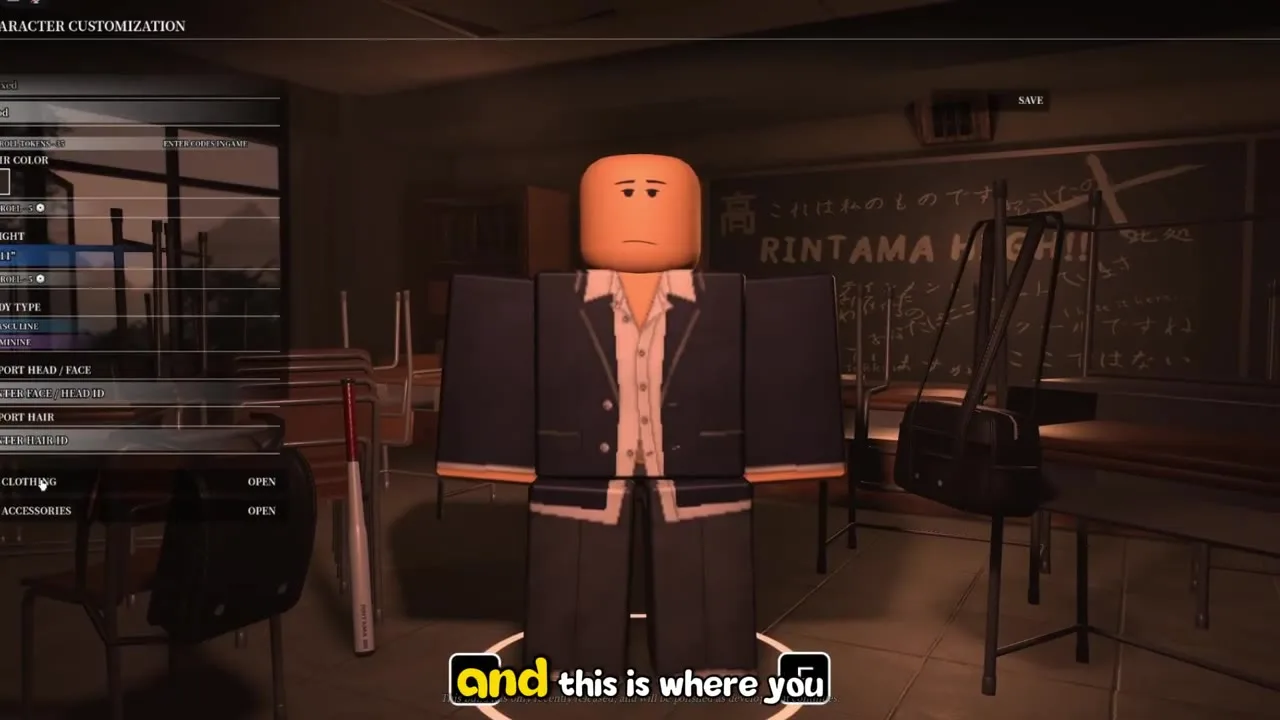
Watch the Marketplace copy step and the Import Head / Face field before you paste your own face ID below.

~7 min read

At A Glance

Searching Rintama High face IDs almost always means one thing: you want to stop using the default blank head and paste in a Roblox Marketplace face you actually picked. Rintama High does not ship a built-in face catalog inside the game itself — every custom face comes from a numeric Marketplace Asset ID you copy from a browser and paste into Character Customization. Pair this page with hair IDs and outfits to finish a full look. Verified August 9, 2026.

FactDetail
Import fieldCharacter Customization > Import Head / Face
Input typeNumeric Roblox Marketplace Asset ID only
Where IDs come fromThe item's page URL on roblox.com, browser only
CostDepends on the individual Marketplace item — some are free, some cost Robux
PersistenceSaved to your character until you overwrite the field again

How do I copy a face Asset ID from the Marketplace?

Every custom face starts on the Roblox website, not inside Rintama High. The game only accepts the number — it never lets you browse the catalog from inside Character Customization — so this step happens in a separate browser tab first.

  • Do01Open roblox.com in a desktop or mobile browser and sign in to your account
  • Do02Use the Marketplace search or the Faces category filter to find the face you want
  • Do03Open the item's page and read the numeric ID from the browser's address bar
  • Do04If the URL is hard to read, use the item page's Copy Link option and pull the digits from the copied text
  • Do05Copy only the number — no letters, slashes, or surrounding text

Browser only, not the mobile app

This is the one step players trip on most: the Roblox mobile app does not expose a clean numeric ID on an item's page the way the website does. If you only have a phone, open roblox.com in the phone's browser rather than the installed Roblox app, then copy the ID the same way you would on desktop.

Free items versus paid items

Some Marketplace faces are free to take; others cost Robux and need to be in your inventory (or otherwise usable) before the ID will actually apply. If a paste does nothing at all, check the item's price and ownership status before assuming the ID itself is wrong.

Once you have a clean number copied, the next step is finding exactly where it goes inside the game.

Where do I paste a face ID in Rintama High?

Character Customization lives behind your Phone, the same menu you use for Settings and codes, not a separate character-select screen.

Rintama High character customization panel showing the Import Head / Face and Import Hair Asset ID entry fields
  • Do01Open your Phone from the character HUD and select Customize Character
  • Do02Scroll to the Import Head / Face field under the Character tab
  • Do03Paste the digits you copied from the Marketplace item page
  • Do04Press the confirm control next to the field and check that your model updates
  • Do05Save before closing the menu so the change actually sticks

Matching a face tone to your hair

Skin color and hair color both live on the same Character tab as the face import field, so it is worth locking those in first, then choosing a face that reads well against them. Full hair color and Asset ID options are on the hair IDs page.

Reroll Tokens do not touch your face

Reroll Tokens reroll your Height stat, which is a separate combat-relevant slider — they have nothing to do with the Import Head / Face field and will not refund or change a face paste. Keep that distinction in mind so you do not spend a token expecting a face change out of it.

Now that pasting works, it helps to know exactly which Marketplace categories are actually meant for this field.

What counts as a face item versus a head or accessory?

Roblox organizes cosmetics into separate Marketplace categories, and only some of them are meant for the Import Head / Face field. Mixing them up is the single biggest reason a "working" ID does nothing.

CategoryWhat it changesWhere it goes
FaceThe expression/texture printed on the headImport Head / Face field
HeadThe full head mesh — rare custom head shapesImport Head / Face field (same slot as Face)
Face AccessoryGlasses, masks, and other layered add-onsNot this field — see outfits for the Accessories panel
Decal / ImageFlat artwork not designed for a character headNever valid here, even though it also has a numeric ID

This page will not hand you specific numbers

Marketplace items get removed, moderated, or re-priced constantly, so a hard-coded list of "best" face IDs goes stale within weeks and risks sending you to a dead or unsafe listing. Search the Faces category yourself using the method above, and treat any ID shared in a random comment section or aggregator site with the same suspicion you would treat an unverified code — confirm it on the actual Marketplace item page before pasting it in.

Why won't my face ID show up?

Most failed face pastes trace back to one of four causes. Check this table before assuming the whole feature is broken.

SymptomLikely causeFix
Nothing changes after pastingCopied the full item link instead of just the numeric IDRe-copy the digits only, then paste again
Face reverts to default a moment laterThe item is moderated, taken down, or otherwise no longer validPick a different, currently listed Marketplace face
Field rejects the entry outrightExtra spaces, a comma, or a stray character got pasted in with the numberClear the field completely and retype just the digits
Face looks right at the shop, wrong in RoleplaySome heavier custom meshes render differently once you leave Character CustomizationSave, then check your model on the map before assuming it is broken

One habit that prevents most failed pastes

Before you paste, open the Marketplace item page one more time and confirm it is actually filed under Faces (or Heads), not Face Accessories or Decals. That single check clears the majority of "it just does not work" reports, because the field is doing exactly what it is supposed to — it is only accepting the category it was built for.

With copying, pasting, and troubleshooting covered, the FAQ below answers the shorter questions players ask most.

Rintama High face IDs FAQ

Can I use any Roblox face in Rintama High?

Any Face or Head item from the Marketplace works as long as you copy its numeric Asset ID correctly and paste it into Import Head / Face — items from other categories, like Face Accessories or Decals, do not.

Do I need to own the item to use its ID?

Free items generally work as soon as you take them. Paid items usually need to be purchased or otherwise usable on your account first — check the item price on its Marketplace page.

Can I change my face again later?

Yes — reopen Customize Character from the Phone menu and overwrite the Import Head / Face field with a new ID at any time.

Why is my pasted ID blank on mobile but worked on PC?

The Roblox mobile app does not expose item IDs cleanly. Copy the ID from roblox.com in a mobile browser instead of the installed app, then paste it the same way.

Do Reroll Tokens change my face?

No. Reroll Tokens only reroll your Height stat. Face changes go through the Import Head / Face field, not the token system.

Where do I find hair and outfit IDs to match?

Hair IDs covers hairstyles and colors, and outfits covers shirts, pants, and accessories.

Last verified?

August 9, 2026

Related pages

Matched by build plan, shared topics, and guide progression — not random related links.

Back to home